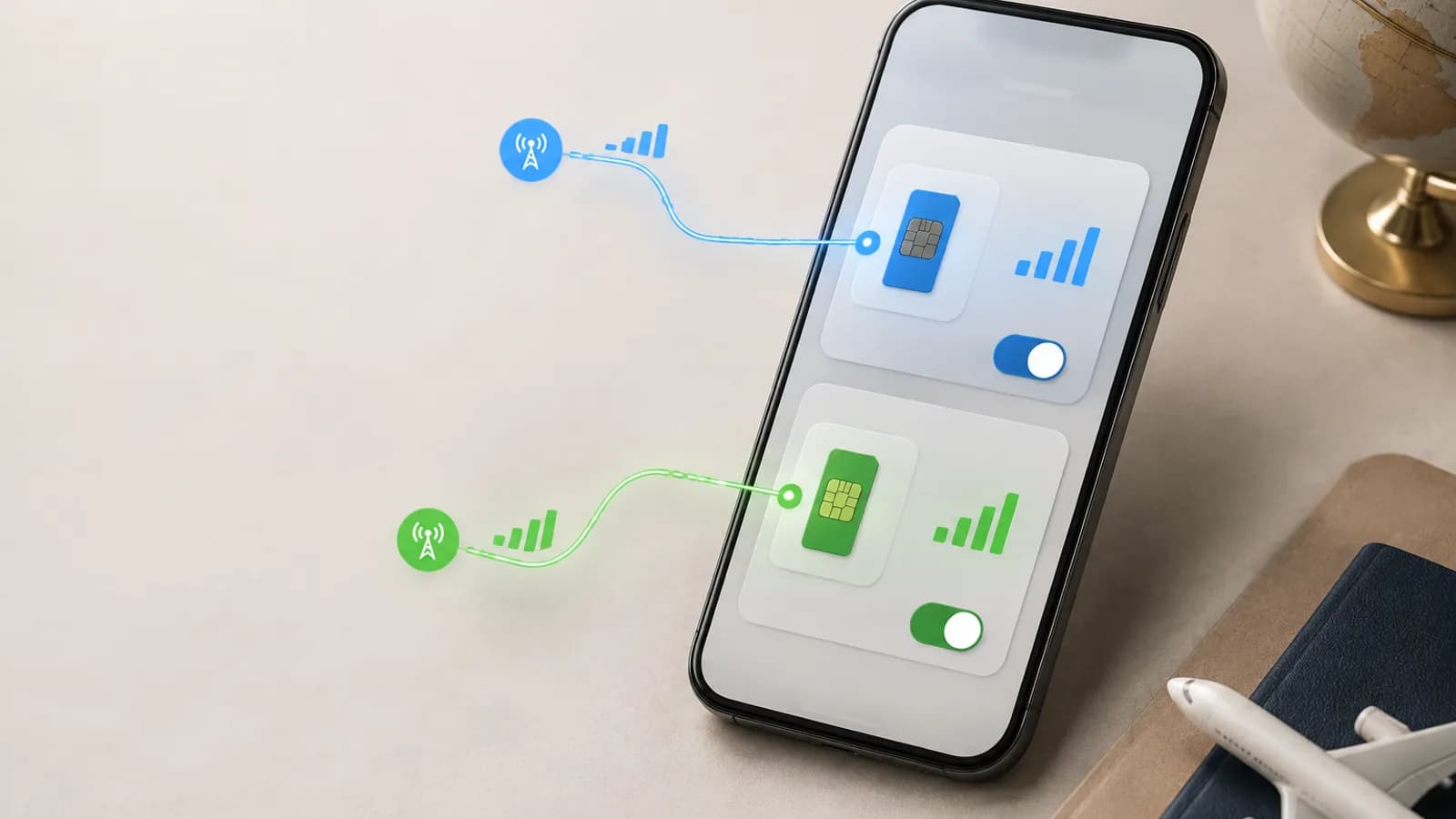
Dual SIM Settings for Travel: Keep Your Canadian Line and Use an eSIM
To use a travel eSIM alongside your Canadian line, install the eSIM, label both lines, make the travel eSIM your mobile data line and keep data roaming off on your Canadian line. Your Canadian number can stay on for calls and texts, but check your carrier's roaming terms before you use that line abroad.
Dual SIM lets you keep your Canadian number on your phone while using a travel eSIM for mobile data abroad. It is convenient for receiving important messages, using iMessage or WhatsApp, and staying reachable without making your Canadian line the default data connection.
The safest setup is to label both lines clearly, choose the travel eSIM for data, disable automatic data switching, and manage roaming separately for each line. Carrier charges for calls, texts, voicemail, and verification messages vary, so review your Canadian plan before departure. The roaming-avoidance guide for Canadians covers the cost side in more detail.
Quick setup
Before you fly:
- Install the travel eSIM over Wi-Fi if the plan allows pre-installation.
- Label the lines Canada and Travel so you do not change the wrong SIM.
- Leave the Canadian line as your normal voice or message line if you need your number.
- Set the travel eSIM as the mobile-data line when you arrive.
- Turn off automatic data switching.
- Keep roaming off on the Canadian line. Turn it on for the travel eSIM only if its instructions require it.
If you have not installed the plan yet, follow how to install a travel eSIM. If the eSIM is installed but data does not work, use the no-internet troubleshooting guide.
iPhone dual-SIM settings for travel
The labels can vary slightly by iOS version, but the controls are in Settings > Cellular or Settings > Mobile Data.
1. Label each line
Open Settings > Cellular, tap the Canadian line, and choose Cellular Plan Label. Name it Canada or your carrier name. Rename the travel plan Travel, USA, Europe, or another label that makes the destination obvious.
Clear labels help prevent the most common dual-SIM mistake: enabling roaming or selecting data on the wrong line.
2. Turn on the lines you want to use
Tap each plan and confirm Turn On This Line is enabled. You can keep the Canadian line on if you need to receive messages or calls, but leaving a line on does not make it the data line.
If you do not need the Canadian number at all during the trip, turning that line off is the simplest way to prevent it from connecting. The tradeoff is that you may not receive carrier SMS, calls, or verification messages on that number while it is disabled.
3. Choose the travel eSIM for cellular data
Go to Settings > Cellular > Cellular Data and select the travel eSIM. Then turn off Allow Cellular Data Switching.
When this option is enabled, the iPhone may use the Canadian line for data when the travel eSIM has a weak connection. That can create unexpected roaming charges even when the travel eSIM is installed correctly.
4. Set the default voice line thoughtfully
Under Default Voice Line, choose your Canadian line if you want your usual number to remain the default for outgoing calls. You can also choose Travel when the plan includes voice service, or choose Ask Before Using where available.
Many travel eSIMs are data-only, so selecting them for voice does not automatically give you a local phone number. For app-based calls and messages, see how calls and texts work with travel eSIMs.
5. Manage roaming per line
Open the Canadian line and keep Data Roaming off if you want to avoid using your Canadian carrier's data abroad.
Open the travel eSIM and check Data Roaming. Turn it on only when the travel plan's instructions require it. The travel eSIM may need roaming to use a partner network, and that is separate from Canadian-line roaming.
For an expanded version of this distinction, read how to activate a travel eSIM without Canadian roaming.
Android dual-SIM settings for travel
Android menus vary by manufacturer and software version. The goal is always the same: enable the correct eSIM, set it as the data SIM, and keep the Canadian line from using mobile data.
Google Pixel
Open Settings > Network & internet > SIMs.
- Tap the travel eSIM and turn it on.
- Under Your primary SIMs or the SIM preferences, choose the travel eSIM for mobile data.
- Turn off Automatic data switching or a similarly named option.
- Open the Canadian SIM and keep roaming off.
- Open the travel eSIM and follow its instructions for roaming.
Pixel menu names can change between Android releases. If you cannot find a setting, search Settings for SIM, roaming, or mobile data.
Samsung Galaxy
Open Settings > Connections > SIM manager.
- Enable the travel eSIM.
- Under Preferred SIMs, choose the travel eSIM for Mobile data.
- Choose the Canadian line for calls or texts if you want to keep using your Canadian number.
- Turn off any option for automatic data switching while travelling.
- Open Mobile networks for each line and manage roaming separately.
On some Galaxy phones, the data-switching option appears inside SIM manager; on others, it is shown as a mobile-data or network preference.
Other Android phones
Look under Settings > SIM manager, Network & internet > SIMs, Connections, or Mobile network. Search for Preferred SIM, Mobile data, Data switching, and Roaming.
If your phone does not show an eSIM option, check the exact model and region in the compatibility guide before buying a plan.
Best settings for common travel goals
I want to keep receiving Canadian verification texts
Leave the Canadian line on, but select the travel eSIM for data and keep Canadian data roaming off. Your carrier may still charge for some calls, texts, voicemail, or roaming services, so check the carrier terms. If a bank or service requires an SMS code, make sure the Canadian line is able to receive it and that you understand any associated fees.
I want to avoid all Canadian roaming
Turn off the Canadian line completely, or keep it on with data roaming off if you need to receive messages. Use the travel eSIM for data and apps such as WhatsApp, FaceTime, iMessage, Messenger, and Google Maps.
I need my Canadian number for iMessage or FaceTime
Keep the Canadian line on and check Settings > Messages > Send & Receive and Settings > FaceTime before leaving. Use the travel eSIM for cellular data. iMessage and FaceTime can use the travel connection, but ordinary SMS and carrier voice calls remain subject to your Canadian line and carrier rules.
I want the travel eSIM to handle everything
Choose the travel eSIM for mobile data and, if the plan supports it, for calls and texts. A data-only plan will not replace your Canadian phone number, so confirm what the plan includes before relying on it.
Arrival checklist
After landing:
- Turn off Wi-Fi briefly so you can test mobile data.
- Confirm the travel eSIM is on and selected for data.
- Confirm automatic data switching is off.
- Check roaming on the correct line.
- Open a simple website or map to confirm data works.
- Turn Wi-Fi back on when available and monitor data usage.
If the phone shows signal but apps do not load, check the installed eSIM no-internet fixes. If it shows No Service or SOS, use the no-service checklist.
Common dual-SIM mistakes
- Selecting the Canadian SIM for cellular data by accident.
- Enabling data roaming on the Canadian line instead of the travel eSIM.
- Leaving automatic data switching on.
- Turning off the Canadian line and then expecting to receive SMS verification codes.
- Assuming a data-only travel eSIM includes a local phone number.
- Deleting the travel eSIM after a temporary network issue.
- Forgetting to switch the data line back to Canada when you return home.
When you return to Canada
Set the Canadian line back as the mobile-data line, turn off the travel eSIM or remove it only if you no longer need it, and review the Canadian line's roaming setting. If you plan to travel again soon, keeping the travel profile installed may be convenient, but follow the plan's validity and reuse rules.
Frequently asked questions
Can I use two SIMs at the same time while travelling?
Many current iPhones and Android phones support dual-SIM use, but the exact combination of physical SIM and eSIM, voice, data, and 5G support varies by model and region.
Which SIM should be selected for mobile data?
Usually the travel eSIM, if your goal is to use the travel plan and reduce Canadian roaming data. Confirm the plan's coverage and activation rules first.
Should roaming be on or off?
Keep it off on the Canadian line unless you intentionally want to use carrier roaming. Turn it on for the travel eSIM only if that plan requires it.
Will keeping my Canadian line on cause roaming charges?
It can, depending on the carrier and what the line does abroad. Data roaming off reduces accidental data use, but calls, texts, voicemail, and other services may have separate rules. Check your carrier before travelling.
Can I turn off my Canadian line while travelling?
Yes. iPhone and most Android phones let you turn a line off without deleting it and turn it back on when you return. While it is off, you will not receive calls or texts on your Canadian number.