How to Transfer a Travel eSIM to a New Phone: iPhone and Android
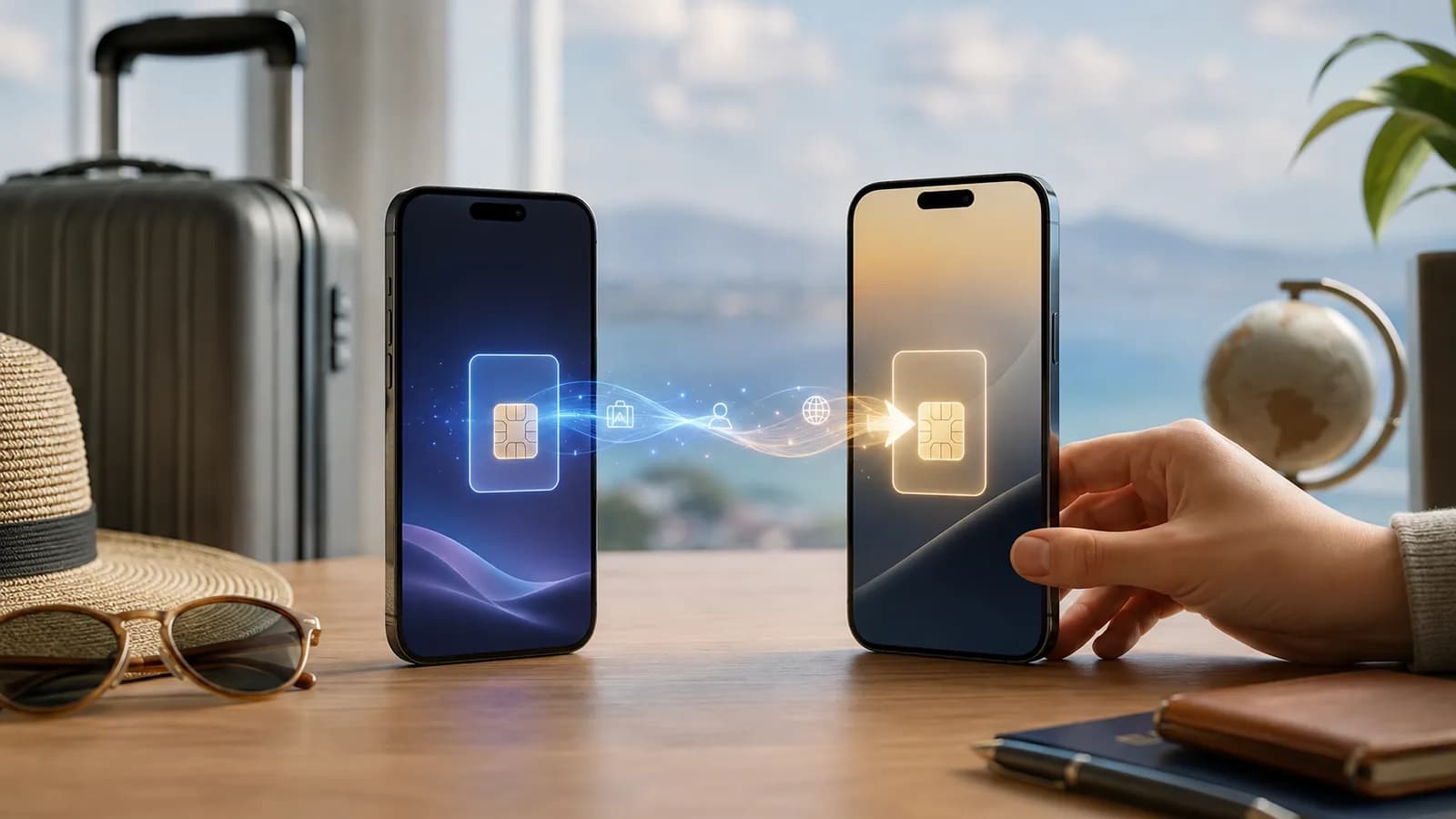
You can move a travel eSIM to a new phone only if your eSIM provider and both phones support it. Some phones offer a built-in eSIM transfer, but many travel eSIMs use a QR code that works only once, so you may need new activation details from the provider. Keep the eSIM on your old phone until the new phone shows the plan working.
Moving a travel eSIM to a new phone is possible in some cases, but it is not as universal as moving photos or apps. A carrier-issued phone number may support a built-in eSIM transfer flow, while a travel eSIM may be tied to the device where it was first installed or may use a QR code that cannot be reused.
The safest rule is simple: do not delete the travel eSIM from the old phone until you know how the provider handles transfer and the new phone is working. If the old phone still works, keep it available on Wi-Fi while you test the new one.
Quick answer
Before transferring, confirm four things:
- The new phone is eSIM-compatible and unlocked.
- The travel eSIM provider allows reinstallation or transfer.
- The plan is still valid and covered at your destination.
- You have Wi-Fi and the original order or activation details available.
If the new phone offers Transfer eSIM, Transfer SIM, or a nearby-device option, you can try it only when the provider and phone support that method. If the option does not appear, install the plan as a new eSIM with a provider-approved QR code, activation link, or manual details. Do not assume that the same QR code can be scanned again.
Why travel eSIM transfer is different
An eSIM is a downloadable mobile profile. During installation, the profile can be associated with the phone's eSIM hardware identifier, and the provider can control whether the activation code is reusable.
That means these statements can all be true depending on the plan:
- The phone's operating system supports eSIM transfer.
- A normal mobile carrier supports eSIM Quick Transfer.
- The travel eSIM provider does not support that transfer flow.
- The original QR code can be reused, but only after the provider resets or approves the installation.
- The plan can be installed on one phone but not active on two phones at the same time.
The provider's instructions control the travel eSIM. A phone-to-phone transfer prompt does not override a provider's activation rules.
Before you move the eSIM
Check the new phone
Use the Voyaio eSIM compatibility guide to confirm that the new phone supports eSIM. Also check that it is unlocked and that its regional model supports the feature.
If you are moving from an Android phone to an iPhone, from an iPhone to Android, or between different regional models, treat compatibility as a fresh check. The old phone working does not prove the new phone can accept the same plan.
Check the provider's transfer rule
Look at the original order email, installation instructions, or support page. Search for wording such as:
- Transfer or reinstall allowed.
- QR code reusable.
- One-time installation.
- Device change or replacement device.
- Contact support before deleting.
If the instructions are unclear, ask the travel eSIM provider before removing anything. Ask whether the plan is tied to the old phone, whether the QR code can be used again, and whether moving it affects the plan's validity period.
Record the old setup
Save the order reference, activation details, APN instructions, supported networks, and expiry information. Take screenshots of the old phone's eSIM name and settings. If the eSIM stops working during the move, these details help support identify the profile.
Transfer to a new iPhone
Option 1: Use an iPhone transfer prompt if it appears
During setup, or under Settings > Cellular > Add eSIM, a new iPhone may offer a nearby-device or eSIM transfer option. This flow is controlled by Apple and the carrier or provider. It may work for a regular carrier line but not for a travel eSIM.
If the option appears:
- Keep both iPhones nearby and connected as instructed on screen.
- Follow the transfer prompts on the new iPhone.
- Wait for the new line to finish activating.
- Do not erase the old phone yet.
- Test the travel eSIM on the new phone with Wi-Fi turned off.
The old line may stop working when the transfer completes, or it may remain available until the new activation is confirmed. That behaviour depends on the provider.
Option 2: Install with a provider-approved QR code or link
If Quick Transfer is unavailable, open Settings > Cellular or Mobile Data > Add eSIM on the new iPhone. Use the QR code, activation link, or manual details supplied for the new installation.
Only scan the original QR code again if the provider says it is reusable. If the iPhone says the code has already been used, stop trying repeated scans and contact support. Repeated attempts do not make a one-time profile transferable.
After installation, label the line clearly, set it as the cellular data line when you are ready to travel, and follow the provider's roaming instructions. The travel eSIM installation guide has the general QR and manual-entry steps.
Transfer to a new Android phone
Option 1: Use the phone's transfer flow
On some Pixel and Android versions, setup may offer Transfer SIM from another device. On Pixel, a similar option can appear under Settings > Network & internet > SIMs > Add SIM. This is available only under certain device, software, and carrier conditions.
Samsung Galaxy and other Android phones may use different menus or may not show a transfer option for a travel eSIM. If the option is missing, that is not necessarily an error; the provider may require QR-code or manual activation instead.
If a transfer option appears, keep both devices nearby, follow the on-screen instructions, and wait for activation before removing the old profile. Test the new phone over mobile data with Wi-Fi off.
Option 2: Add the eSIM on the new phone
On Pixel, look under Settings > Network & internet > SIMs > Add SIM. On Samsung, look under Settings > Connections > SIM manager > Add eSIM. Other Android phones may call the option Download a SIM, Add mobile plan, or Set up an eSIM.
Use only the QR code, link, or manual details approved for the new device. If the provider has issued a replacement activation, use that instead of the original installation code.
Once installed, choose the travel eSIM for mobile data and apply any provider-specific roaming or APN settings. Android menu names vary by brand and software version, so use the Samsung and Android setup guide for orientation rather than assuming every phone has the same controls.
What happens to the plan and validity?
Do not assume that transfer pauses the plan, restarts the validity period, or creates a second copy. The result depends on the provider's billing and activation rules.
Possible outcomes include:
- The plan continues with the original expiry date.
- The plan remains valid but must be activated again on the new device.
- The provider issues a replacement profile.
- The original profile is permanently associated with the old device.
- The plan cannot be moved after it has been installed.
If you are already abroad, keep the old phone as a backup until the new one connects. If the old phone is lost, stolen, damaged, or unavailable, contact the provider with the order reference and new phone details. Do not claim the eSIM was transferred if you have only copied the phone's data; a backup does not necessarily copy the mobile profile.
If the transfer fails
Stop and capture the exact message. Common messages include eSIM cannot be transferred, activation code already used, No Service, or Unable to activate.
Then check:
- The new phone is unlocked and compatible.
- The new phone is connected to Wi-Fi.
- You are using the correct order or activation details.
- The plan covers the current destination and is not expired.
- The old eSIM has not been deleted prematurely.
Use the general eSIM troubleshooting guide after the profile is installed. If the profile itself cannot be added, contact the travel eSIM provider before resetting the phone or buying a second plan.
What about your Canadian number?
Moving a travel data eSIM is separate from moving your Canadian phone number. If your Canadian SIM or eSIM is also changing phones, your Canadian carrier controls that transfer.
If you want to keep your Canadian number available while using travel data, read how to use an eSIM and keep your Canadian phone number. Check your carrier's rules for calls, SMS, voicemail, and roaming before the trip.
Related Voyaio guides
- Install a travel eSIM on a new phone
- Check the new phone's eSIM compatibility
- Set up a travel eSIM on iPhone
- Set up a travel eSIM on Samsung or Android
- Keep your Canadian phone number
Frequently asked questions
Can I transfer any travel eSIM to another phone?
No. Transferability depends on the eSIM provider, activation method, plan rules, and the two phones. Confirm before deleting the original profile.
Can I scan the same QR code on my new phone?
Only if the provider says the code is reusable. Many QR codes are single-use or tied to the first device where they were installed.
Will my travel eSIM work on both phones at once?
Do not assume so. Many plans authorize one installed or active device at a time, and the provider decides whether multiple installations are allowed.
Should I delete the eSIM from my old phone before transferring?
No. Keep it until the new phone shows the travel eSIM installed and working, unless the provider's transfer steps tell you otherwise. A deleted eSIM usually cannot be restored from the phone.
Can I transfer my travel eSIM while I am abroad?
Sometimes, if the provider and both phones support transfer and you have a stable Wi-Fi connection. If transfer is not supported, ask the provider that sold the plan for new activation details before you remove anything from the old phone.