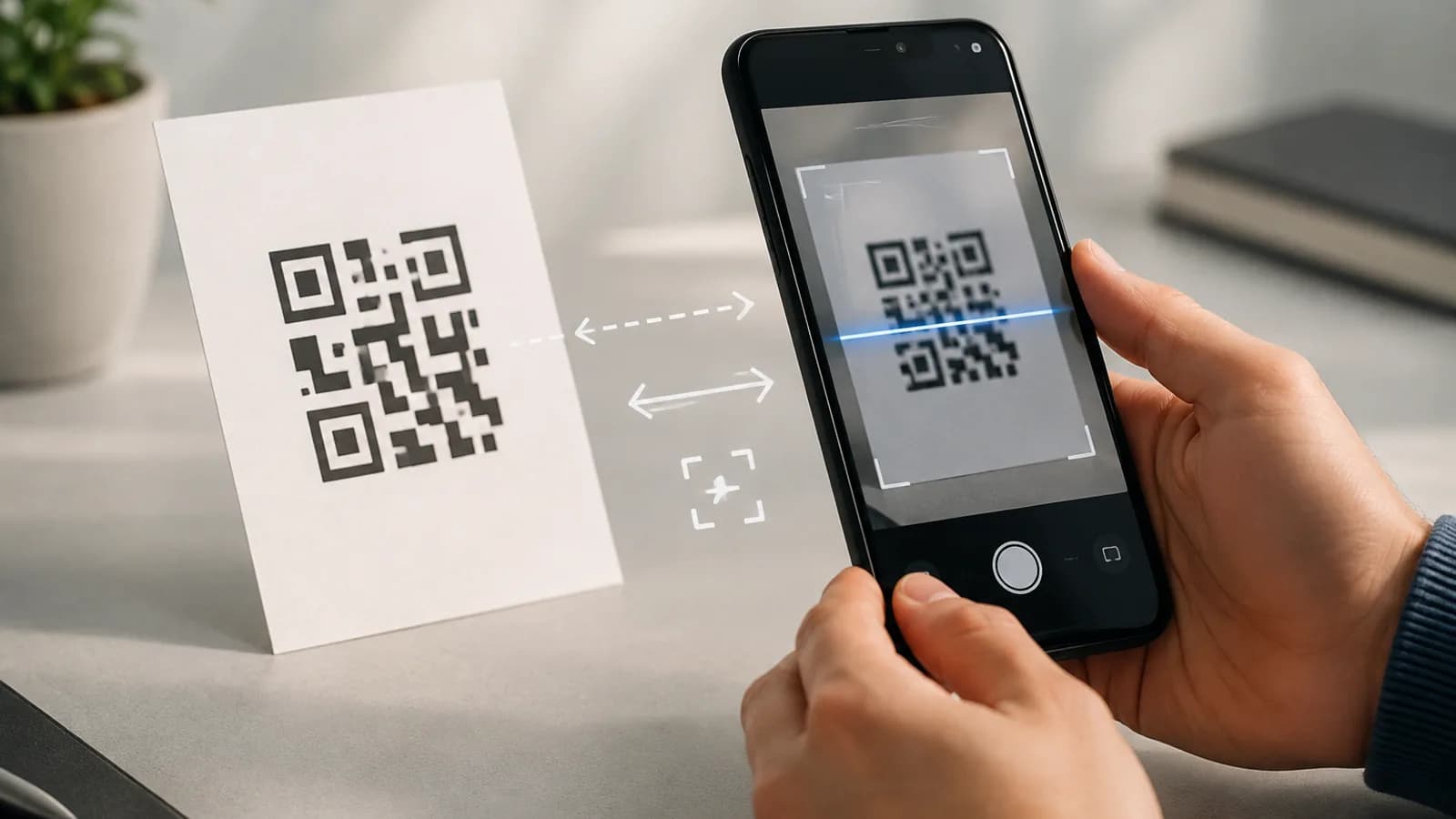
Travel eSIM QR Code Not Scanning? What to Try on iPhone and Android
TL;DR
Fix a travel eSIM QR code that will not scan by checking the display, camera, phone settings, Wi-Fi, and manual activation details.
A QR code is one of the quickest ways to install a travel eSIM, but it is not the only way. If your Canadian phone will not scan the code, the problem is usually the display, lighting, camera, phone menu, or a QR code that has already been used.
Do not delete an eSIM that is already installed just because it is not connecting. Installation and activation are separate steps, and some travel eSIM profiles cannot be reinstalled after they are removed.
Quick answer
Try these steps in order:
- Display the QR code on a second screen, such as a laptop or tablet.
- Increase the screen brightness and remove glare from the code.
- Open the eSIM installation screen in Settings instead of relying on the Camera app.
- Use the manual activation details from your order email if scanning still fails.
- If the message says the code is invalid, expired, or already used, contact support before trying to install it again.
For a complete setup sequence, see how to install a travel eSIM. If your eSIM is installed but has no data, use the travel eSIM no-internet checklist.
Before you try the QR code again
Confirm that:
- You are scanning with the phone that will use the eSIM.
- The phone is connected to reliable Wi-Fi.
- The phone is eSIM-compatible and unlocked. The eSIM phone compatibility guide explains how to check both.
- You are using the original QR code from your Voyaio order, not a cropped or blurry copy.
- The code has not already been scanned on another phone.
If the QR code came from an email on the same phone, the phone cannot normally point its camera at its own screen. Open the email on a computer or tablet, print the code, or use a supported option to add the eSIM from a saved image.
Fix a QR code that will not scan on iPhone
The exact wording can vary by iOS version, but the Settings path is usually more reliable than opening the Camera app first.
1. Open the eSIM installation screen
Go to Settings > Cellular or Settings > Mobile Data, then tap Add eSIM or Add Cellular Plan. Choose Use QR Code and hold the iPhone steady at a comfortable distance from the code.
If the QR code is on another screen:
- Turn that screen's brightness up.
- Make the QR code large enough to fill most of the iPhone's view without cutting off the edges.
- Remove screen glare and avoid a coloured or patterned background.
- Keep the phone and the QR code parallel rather than at an angle.
2. Try the Camera app only if Settings does not detect it
On some iPhones, you can open the Camera app, point it at the QR code, and tap the notification to add a cellular plan. If nothing appears, return to Settings > Cellular > Add eSIM > Use QR Code.
Clean the camera lens and remove any case or screen protector that is covering the lens. A dark room, reflections, or a low-resolution screenshot can prevent the camera from recognizing the code.
3. Enter the activation details manually
If your order email includes an SM-DP+ address and activation code, use the manual entry option in the eSIM setup flow. Enter every value exactly as supplied, including punctuation and capitalization. Do not add spaces or use details from another plan.
Manual entry is especially useful when you have only one device and the QR code is displayed in an email on that same iPhone.
Fix a QR code that will not scan on Android
Android menus differ by brand, but the eSIM option is usually inside SIM or mobile-network settings.
Google Pixel
Open Settings > Network & internet > SIMs > Add SIM, then choose Set up an eSIM or Download a SIM instead. Scan the code from a second screen and follow the prompts.
Samsung Galaxy
Open Settings > Connections > SIM manager > Add eSIM, then choose Scan QR code. Keep the QR code fully visible and wait for the phone to finish downloading the plan.
Other Android phones
Search Settings for eSIM, Add mobile plan, Download SIM, SIM manager, or Mobile network. If none of these options appears, the exact phone model or regional variant may not support eSIM. Check phone compatibility before buying rather than repeatedly trying the QR code.
If your Android phone offers manual activation, enter the SM-DP+ address and activation code from your order instructions. The field names can vary, so follow the phone's prompts and the provider's details together.
What different error messages usually mean
“Unable to activate” or “Could not add eSIM”
Check Wi-Fi, restart the phone, and retry from the Settings eSIM menu. If the same error returns, confirm that the phone is unlocked and that the QR code belongs to that device and plan.
“Invalid QR code” or “QR code not recognized”
Improve brightness and focus first. Then try the original code on a larger second screen. If it still fails, the code may be incomplete, expired, or for a different product.
“Already used” or “This code cannot be used”
Stop retrying and do not delete anything. The profile may already be installed, or the code may have been consumed by an earlier attempt. Contact support with your order number and a screenshot of the exact message.
The eSIM appears in Settings but shows no service
The QR scan worked; the remaining problem is activation or network connection. Turn on the travel line when you arrive, choose it for mobile data, and follow the plan's roaming instructions. The general eSIM troubleshooting guide covers network selection, APN, and coverage checks.
When to contact support
Contact Voyaio support before deleting the eSIM if:
- The code says it was already used.
- Manual activation details are missing or do not work.
- The phone says the plan is not compatible.
- You accidentally scanned the code on another device.
- The profile is installed but you cannot turn it on.
Include your order number, phone model, iOS or Android version, destination, and the exact error message. Screenshots of the eSIM menu are helpful, but hide passwords and private account information.
For another setup question, see whether you need an app to use a travel eSIM.
Frequently asked questions
Can I scan a travel eSIM QR code from my own phone?
Sometimes. If your phone supports adding an eSIM from a saved image or directly from an email, follow that prompt. Otherwise, display the QR code on a computer or tablet, print it, or use manual activation details.
Should I keep trying after a failed scan?
A few careful retries are fine, but stop if the message says the code was used, invalid, or expired. Repeated attempts will not repair a code that needs provider support.
Can I delete and reinstall the eSIM?
Do not delete it unless support confirms that it can be reissued or reinstalled. Many profiles are one-time downloads.
Does a QR code need an internet connection?
Yes. Your phone generally needs Wi-Fi or another working data connection to download the eSIM profile after it recognizes the code.