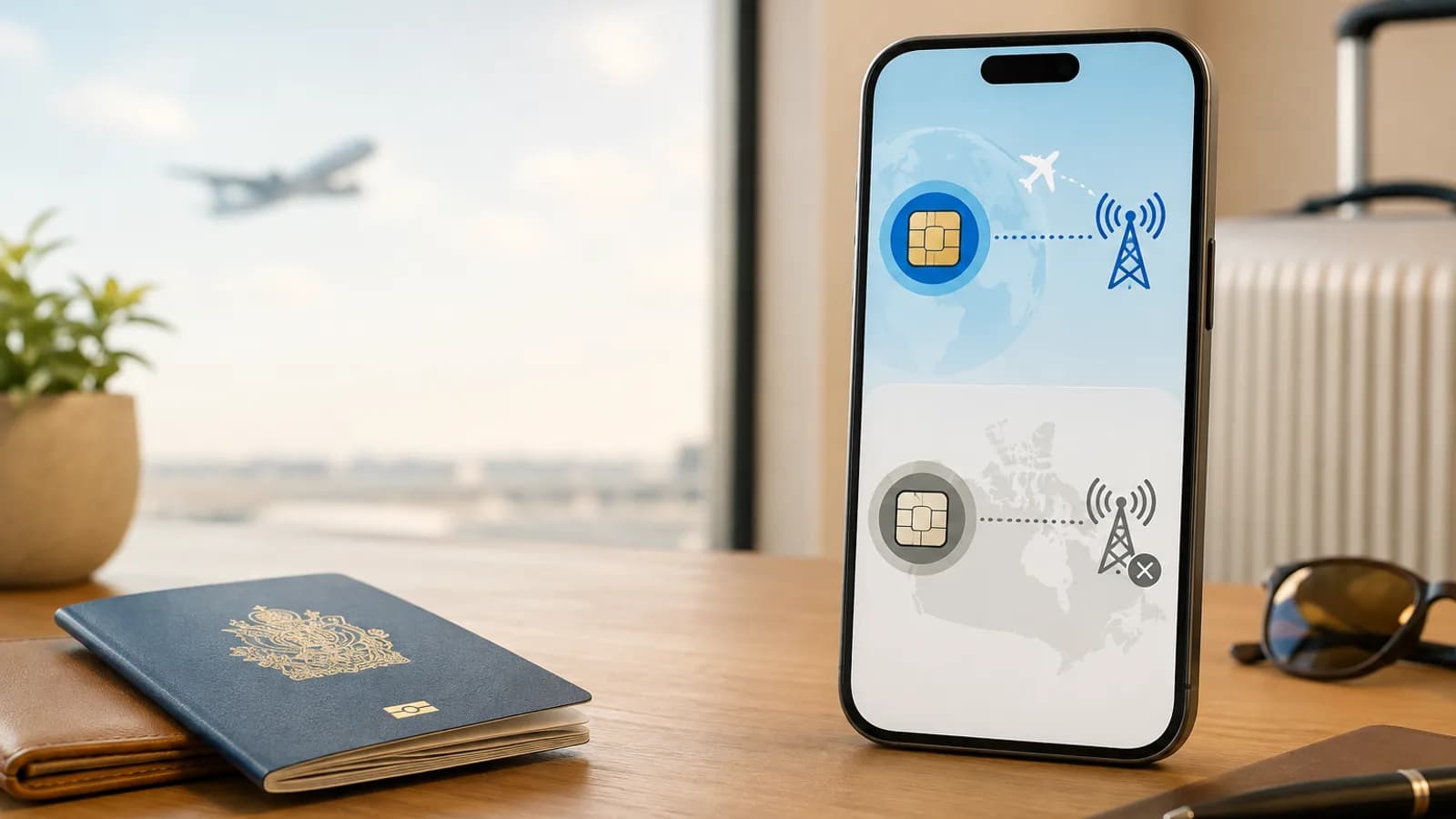
How to Use a Travel eSIM While Keeping Canadian Data Roaming Off
TL;DR
Activate travel eSIM data without Canadian roaming by choosing the correct data line and managing roaming separately on iPhone and Android.
You can use a travel eSIM for data while keeping Canadian data roaming off. The key is to select the travel eSIM as your data line and check how your phone applies its roaming setting. Some devices expose roaming separately for each SIM; others may use a shared or model-specific control.
However, some travel eSIMs connect to foreign partner networks and require data roaming to be enabled on the travel eSIM itself. There is no universal setting that lets those plans work with roaming off. Whether roaming is required depends on the eSIM provider, plan, and network arrangement.
So the practical goal is usually not “roaming off everywhere.” It is: use the travel eSIM for data, keep roaming off on the Canadian line, and follow the travel provider's instruction for the travel line.
Quick answer
Before you leave Canada:
- Install the eSIM on Wi-Fi.
- Keep the Canadian line as your usual line until you arrive.
- Confirm the travel eSIM's activation and roaming instructions.
When you arrive:
- Turn on the travel eSIM line.
- Choose it as the cellular or mobile data line.
- Check the roaming control for each SIM and keep Canadian data roaming off where the setting allows.
- Turn data roaming on for the travel eSIM only if its instructions require it.
- Review any automatic data-switching option so you know whether the phone can use the Canadian line for data if the travel eSIM cannot connect.
For a complete pre-trip settings walkthrough, read the phone settings guide for avoiding roaming charges.
Activation and roaming are not the same thing
Installing an eSIM downloads a mobile profile to your phone. Activating or using it may mean turning on the line, selecting it for data, registering on a covered network, or completing a provider-specific step.
A phone's Data Roaming setting controls mobile data on roaming networks. On dual-SIM phones, the control may be per-line or may vary by model and carrier, so confirm which SIM it affects before changing it. For a travel eSIM, roaming may be how the plan reaches a local partner network. For your Canadian SIM, roaming data may be billed according to your carrier plan.
The eSIM provider decides whether the travel line needs roaming. Your Canadian carrier decides what happens when the Canadian line roams. These are separate relationships and separate billing rules.
How to set up an iPhone while keeping Canadian data roaming off
Before travel: install the eSIM on Wi-Fi
Use the travel eSIM installation guide or the iPhone setup guide to add the plan. Label it something obvious, such as “Europe Travel” or “USA Data,” so you do not confuse it with your Canadian line.
You can usually leave the travel line off until arrival if the provider's instructions allow that. Some plans start their validity when installed, while others start on first use or when they connect abroad. Check the plan details before choosing when to turn it on.
On arrival: choose the travel eSIM for data
Open Settings > Cellular or Mobile Data and:
- Select the travel eSIM and turn on This Line.
- Open Cellular Data and select the travel eSIM.
- Leave Allow Cellular Data Switching off if you want to keep data on the selected travel line. Apple says this setting can allow the iPhone to use either plan for data depending on coverage and availability. With switching off, mobile data may pause during a call on the other line; check your carrier's terms if you need data during Canadian-line calls. See Apple's Dual SIM guidance.
- Open the Canadian line and keep its Data Roaming off if the setting is per-line.
- Open the travel eSIM's Cellular Data Options and follow the provider's roaming instruction. Data roaming controls data; it does not prevent charges for voice calls or texts on an active Canadian line. Apple's international eSIM travel guide explains the available line options.
If the provider says roaming is not required, leave it off for the travel eSIM. If roaming is required, check that the setting applies to the travel eSIM before enabling it. Some phones do not expose the control separately for each line. If the scope is unclear, confirm with your device maker, eSIM provider, or carrier before changing a shared toggle.
Choose the voice and message line carefully
If the travel eSIM is data-only, it may not provide a local phone number or normal SMS and voice service. You can keep the Canadian line selected for your usual number if you need it, but your carrier's roaming rules still apply to calls, outgoing texts, voicemail, and some incoming services.
Read how to keep your Canadian phone number while using eSIM data before deciding whether to leave the Canadian line on.
How to set up Android while keeping Canadian data roaming off
Android settings vary, but the same per-line logic applies.
Pixel
Open Settings > Network & internet > SIMs. Select the travel eSIM, enable it, and choose it for mobile data. Google's Pixel network settings guide explains how to check data and roaming settings for each SIM; menus vary by Android version.
Open each SIM's network settings and check the Roaming control. Keep roaming off for the Canadian SIM; enable it for the travel eSIM only when the provider requires it. Some Pixel models include automatic data switching for dual-SIM calling. Check Google's Dual SIM guidance before enabling it if you want data to stay on the travel eSIM. Google also notes that data during a call can use the SIM making the call, so review your carrier's terms before calling on the Canadian line abroad.
Samsung Galaxy
Open Settings > Connections > SIM manager. Turn on the travel eSIM and choose it under Mobile data. If Auto data switching is available, turn it off if you want to keep data on the travel eSIM; on some Galaxy models it can use another SIM when the preferred SIM cannot connect. See Samsung's dual-SIM settings.
Open Settings > Connections > Mobile networks > Data roaming and check whether that control applies to the active data SIM or to the device. Samsung's menu and behavior can vary by model and carrier; see its connection settings guide. Keep the travel eSIM selected for mobile data, and enable roaming only when its provider requires it. If the control is shared and you cannot tell which SIM it affects, confirm with your carrier or device support before enabling it.
Other Android phones
Look for SIMs, SIM manager, Mobile network, Preferred SIM, or Data roaming. Menu names and toggle scope can change by manufacturer, carrier, and software version. If you cannot tell which line a roaming control affects, check the phone maker's help or ask your carrier before enabling it.
Can a travel eSIM work with roaming off?
Sometimes. It depends on how the plan is provisioned.
Roaming can usually remain off on the travel eSIM when the provider's instructions say the plan connects without it. But if the plan relies on international roaming agreements to connect to a local network, turning roaming off can prevent data from working even when the eSIM is installed and the phone shows a local signal.
Do not infer the requirement from the word “travel.” Check the instructions for your exact plan. If the instructions are silent and the eSIM has no data, ask the provider before changing several settings at once.
How to reduce roaming risk further
Keeping data assigned to the travel eSIM is the main protection against Canadian data roaming. Use these additional checks:
- Set the travel eSIM as the only mobile data line.
- Review any automatic data-switching option and turn it off if it can move data to the Canadian line when the travel eSIM loses service.
- Avoid selecting the Canadian line for large downloads or hotspot use.
- Check which line is selected before placing regular calls or sending SMS.
- Download maps and key travel documents over Wi-Fi.
- Check your Canadian carrier's roaming policy before departure.
No phone setting can override your carrier's billing rules. If you need to receive banking codes or calls on your Canadian number, confirm how your carrier treats those actions abroad.
What if the eSIM does not connect after setup?
First check that you changed the travel eSIM's settings, not the Canadian line's settings. Then confirm the destination is covered, the travel line is on, the correct data line is selected, and any required roaming is enabled on the travel eSIM.
If the phone says No Service, use the eSIM No Service diagnostic checklist. If the phone shows signal but apps have no internet, use the installed eSIM no-internet fixes.
The provider may also require an APN, supported network selection, or a particular activation step. Use only the details supplied for your plan. Do not copy an APN from another provider or turn on roaming on the Canadian line as a test unless you understand the possible charges.
Related Voyaio guides
- Review phone settings to avoid roaming charges
- Install a travel eSIM
- Set up a travel eSIM on iPhone
- Set up a travel eSIM on Samsung or Android
- Keep your Canadian phone number
- Compare eSIMs and Canadian roaming
Frequently asked questions
Do I have to turn on roaming to activate a travel eSIM?
Not always. Some travel eSIMs need data roaming on the travel line to connect to partner networks; others do not. Check the exact provider instructions.
Can I leave data roaming off on my Canadian SIM?
If your phone provides a separate setting for each SIM, keep data roaming off on the Canadian line. On some dual-SIM phones the control may be shared, so verify its scope before changing it. This setting controls data; it does not determine how calls or texts are billed. Keep the travel eSIM selected for mobile data.
Is turning on roaming for the travel eSIM the same as using Canadian roaming?
The network and billing arrangements are separate, but the device's toggle may be per-line or shared depending on the phone. Confirm which SIM it affects. Roaming on the travel eSIM follows that provider's plan; use of your Canadian line follows your Canadian carrier's terms.