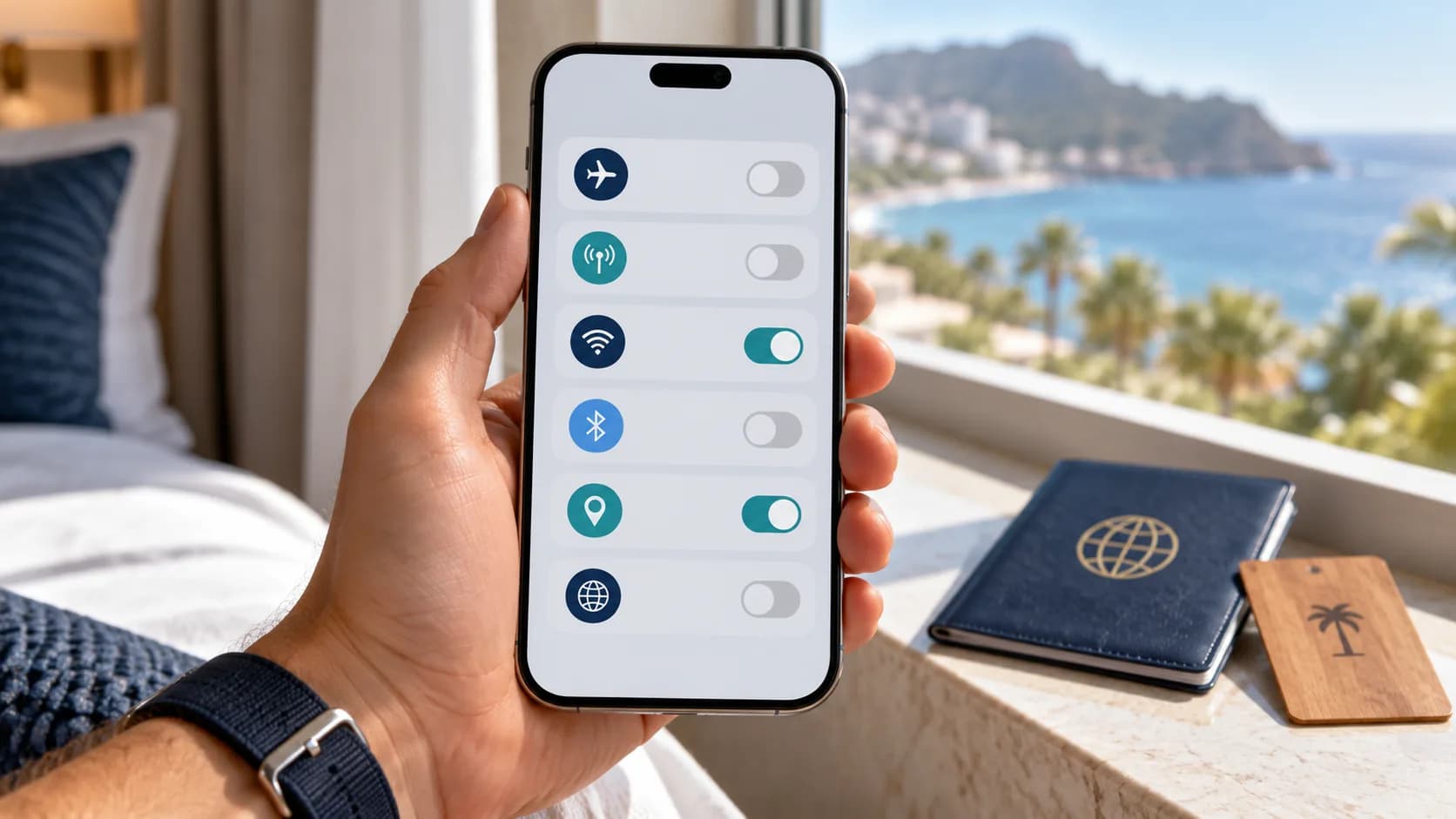
How to Limit Roaming Data Charges on iPhone and Android While Travelling
TL;DR
iPhone and Android settings for selecting travel eSIM data and checking Canadian roaming, call, and text charges.
Quick answer
To keep your Canadian plan from using mobile data abroad, select your travel eSIM as the data line and turn off data roaming for your Canadian line. If the travel eSIM needs roaming to connect, enable it only for that plan and follow its setup instructions. Keeping the Canadian line on for calls or texts can still lead to carrier roaming charges, even when your travel eSIM handles data.
Roaming charges can happen when your Canadian carrier line uses a foreign network for data, calls, or texts, depending on your plan. When mobile data is available on a roaming line, background activity such as email sync, photo backup, or app updates may use data. Whether that creates a charge depends on your carrier plan and settings.
A travel eSIM helps because it gives your phone a separate data plan for the country or region you are visiting. Instead of using your Canadian carrier for data abroad, you use the travel eSIM. The setup is simple, but it is important to choose the correct line for mobile data and to prevent your Canadian line from using roaming data in the background.
Why roaming charges happen
Roaming happens when your phone uses another carrier's network. If you are travelling outside Canada, your Canadian plan may connect through a partner carrier. Depending on your plan, that can lead to charges for data, calls, or texts; some plans include roaming in certain places.
You can control which SIM uses mobile data without turning your phone off for the trip. Check your Canadian carrier's separate rules for calls and texts if you keep that line active.
Before you leave Canada
Install your travel eSIM before your trip if possible. You can usually scan the QR code or follow the provider's installation instructions while connected to Wi-Fi at home. In many cases, you should install it before departure and activate or use it when you arrive, depending on the plan instructions.
Label your lines clearly. For example, name your Canadian line "Canada Primary" and your travel eSIM "Europe Data" or "USA eSIM." This makes it easier to choose the right line when you are tired after a flight.
Download important items before you go. Save offline maps, hotel confirmations, boarding passes, train tickets, playlists, podcasts, and travel documents. This reduces your need for mobile data and gives you a backup if you have connection issues.
Also check that your phone is unlocked and supports eSIM. A travel eSIM will not work properly if the phone is locked to a carrier or does not support eSIM.
iPhone settings to limit data roaming
Menu labels can vary slightly by iOS version. Before turning cellular data on abroad:
- Open Settings > Cellular (or Mobile Data) and tap Cellular Data. Select your travel eSIM.
- Return to the line list, tap your Canadian line, and turn Data Roaming off. Depending on iOS, this may appear under Cellular Data Options.
- Check the travel eSIM's own roaming setting. Turn it on only if its installation instructions require it.
- In Settings > Cellular > Cellular Data, leave Allow Cellular Data Switching off if you want the iPhone to keep data on the selected travel line. Apple says this option can let the iPhone use either plan for data depending on coverage and availability. With switching off, mobile data may pause during a call on the other line; check with your carrier before enabling a setting that could use your Canadian plan for data.
These steps control mobile data. They do not prevent roaming charges for calls or texts on an active Canadian line. See Apple's international travel eSIM guidance and Dual SIM settings for details.
Android settings to limit data roaming
Android menu names and roaming controls vary by phone, software version, and carrier. Check the settings for each SIM rather than assuming a toggle applies to both lines.
Google Pixel: Open Settings > Network & internet > SIMs. Under Your primary SIMs, select your travel eSIM for Mobile data. Open each SIM's network settings and turn Roaming off for the Canadian line. Turn it on for the travel eSIM only if its provider requires it. Google's Pixel mobile network guide explains that settings can vary by phone and Android version; its Dual SIM guide explains which line handles data during calls.
Samsung Galaxy: Open Settings > Connections > SIM manager and choose the travel eSIM for mobile data. Then check Settings > Connections > Mobile networks > Data roaming. Galaxy menu options vary by model and carrier, so verify which line the roaming control affects before turning it on. Samsung's Galaxy eSIM guide and connection settings guide show the current menu paths.
Some Galaxy phones offer Auto data switching, which can use another SIM for data if the preferred SIM cannot connect. Turn it off if you do not want the Canadian line to take over data when the travel eSIM loses service. On Pixel, data during a call may use the SIM making the call; check Google's Dual SIM guidance and your carrier's terms before using the Canadian line for calls abroad.
Should you keep your Canadian SIM on?
Many travellers want to keep their Canadian number active for two-factor authentication, bank texts, family messages, or emergency calls. You can usually select the travel eSIM for data while keeping the Canadian line on, but calls and texts on the Canadian line may still be billed under your carrier's roaming terms. Turning off data roaming only controls data; it does not turn off voice or SMS roaming.
If you keep your Canadian SIM on, be careful with calls. Incoming and outgoing calls may trigger roaming fees depending on your carrier plan. SMS rules also vary. Some carriers charge to send texts while roaming, while receiving certain texts may be free. Check your carrier's travel terms if you plan to use your Canadian number abroad.
If you do not need your Canadian number during the trip, you can turn the Canadian line off. This prevents that line from connecting, but you will not receive calls or texts on it. You can still use your travel eSIM for data and internet-based messaging apps.
Airplane mode strategy
Airplane mode is useful during the flight and can also help prevent accidental roaming right after landing. Before takeoff, turn on airplane mode. After landing, connect to airport Wi-Fi if needed, then review your cellular settings before turning mobile data back on.
When you are ready, turn on your travel eSIM and select it as the data line. Confirm your Canadian line's data roaming setting before turning off airplane mode. Airplane mode is not a substitute for checking these settings; cellular service resumes when you turn it off.
Some travellers leave airplane mode on and manually turn on Wi-Fi only when they do not need cellular service. That works, but it also means your eSIM data will not be active. If you want maps, ride-share, messaging, and mobile browsing outside Wi-Fi, you need cellular enabled with the travel eSIM as the data line.
Optional ways to use less travel data
Download offline maps, tickets, and media over Wi-Fi before you leave. If you want to conserve your travel plan, review cellular photo backup, automatic downloads, and video auto-play in the apps you use. These choices affect data use; they do not choose which SIM uses mobile data.
Check which SIM is using mobile data
After you arrive, open cellular or SIM settings and confirm that the travel eSIM is on and selected for mobile data. Check the Canadian line's data roaming setting and the travel eSIM's provider instructions. If your device shows data usage by SIM, use it as a secondary check; phone counters may reset or differ from your carrier's billing records.
If your Canadian carrier sends a roaming alert, check your account or contact the carrier to see which services were used and whether your plan applies a fee. A data-line selection does not tell you how calls or texts on the Canadian number are billed.
What about calls and texts?
A data-only travel eSIM usually does not replace your Canadian phone number for regular calls and SMS. It gives you mobile data. You can use internet-based calling and messaging apps over that data, but regular carrier calls and SMS still use your Canadian line if it is active. Selecting the travel eSIM for data does not make calls or SMS on the Canadian line free; check your carrier's terms.
If you need to make regular calls, consider using Wi-Fi calling where supported, internet calling apps, or your carrier's travel add-on. Be careful with regular voice calls while roaming because they may be billed differently from data.
For two-factor authentication, many travellers keep their Canadian line on but avoid answering calls or sending texts unless necessary. This can work, but you should check your carrier terms so you understand what may be charged.
Troubleshooting: data is not working
If your travel eSIM is not working, check that it is turned on and selected for mobile data. Confirm whether its provider requires data roaming, an APN, or manual network selection, and follow those instructions. Restart your phone if the provider recommends it.
Also confirm that your plan is valid for the destination and that the validity period has started. Some plans begin when installed, while others begin when they first connect to a supported network. Read the instructions so you know what to expect.
Related Voyaio guides
- avoid roaming charges as a Canadian traveller
- install your travel eSIM
- check phone compatibility
- choose a data amount
- compare eSIM vs roaming
- keep your Canadian number active
Frequently asked questions
Should data roaming be on or off with a travel eSIM?
Data roaming controls data on the selected line. Keep it off for the Canadian line unless your carrier plan says otherwise. For the travel eSIM, follow the provider's instructions; some plans require roaming on to connect.
Can I avoid roaming charges by removing my SIM card?
Turning off the Canadian line can prevent it from connecting to a foreign network, but you will lose access to calls and texts on that number while it is off. If you keep it on, set the travel eSIM as the data line and check your carrier's charges for calls and SMS.
Will airplane mode stop roaming charges?
Airplane mode turns off cellular connections while it is on, though Wi-Fi can be turned back on. When you turn airplane mode off, cellular service resumes, so the correct line and roaming settings still matter.
Can I receive bank texts while using a travel eSIM?
Often yes, if your Canadian line remains active and your carrier supports receiving texts abroad. Charges vary by carrier and plan, so check before relying on it.
Bottom line
Before connecting abroad, select your travel eSIM for mobile data, check roaming settings on each line, and review your Canadian carrier's charges for calls and texts. Follow the travel eSIM provider's instructions if it requires data roaming. Data-switching options vary by device, so confirm how yours behaves before relying on it.